My Diary
Q1. Assigning Multiple Staff to a Diary entry
Issue:
I want to assign more that one staff member to a particular entry in my diary.
Resolution:
To do this you need to select the button with the 3 dots in the Add Diary / Task Entry window beside the Staff Member selection (see screen shot below).
This will display the Select Staff window. From this you can select the staff member you want to assign this diary entry to by ticking the check box adjacent to the Staff member’s name. Once you have selected the required staff members, select the OK button to complete. On saving the diary entry it will now be displayed in the assigned staff members diaries also.
Q2. Cannot view Diary entries
Issue:
There are entries in my diary or a colleague’s diary that I cannot see. Why is this?
Resolution:
The reason you cannot see an entry can be for a number of reasons;
1. The entry your colleague has entered has been set to Private and as such, only this staff member can see their own entry.
2. You do not have access rights to see diary entries of other staff. You will need to check the access rights of the User Access Group you are in to make sure you have access to another person’s diary, or speak to your DRIVE administrator to grant you access.
3. You have the wrong staff member selected. In the top toolbar where it says My Diary, there is a Staff hyperlink, and beside that is the name of the Staff whose diary you are currently looking at. Selecting this link will display the Select Staff screen. Select the Staff member whose diary you want to view by ticking the check box adjacent to the Staff members’ name. Once you have selected the required staff members, select the OK button to complete. On saving you will now be able to see the diary entries for the selected staff members.
4. The Diary filter is incorrect for the entry you are trying to find. For example, you are looking for a Meeting and the filter has been set to show Tasks only. This filter is the “Show” button located in the top toolbar beside the Diary settings. Change this to All to see all entries.
Q3. Private Entries
Issue:
There are entries in my diary that I only want visible to myself. Can I set these entries so only I can see them?
Resolution:
When you create your Diary entry, select the ‘Type’ to be Private. The Type box is found on the far right of the Add Task/Meeting/Event screen. Select Private from the drop down list.
Any entries with Private as the type will only be viewable by the staff member who created it.
My Tasks
Q1. Entries not being displayed
Issue:
I cannot see any entries under My Tasks
Resolution:
The reason you cannot see the entries is because of two reasons;
1. Staff Selection: In the top toolbar where it says My Tasks, there is a Staff link, and beside that is the name of the Staff whose tasks you are currently looking at. Selecting this link will display the Select Staff screen. Select the Staff member whose tasks you want to view by ticking the check box adjacent to the Staff members’ name. Once you have selected the required staff members, select the OK button to complete. On saving you will now be able to see the tasks for the selected staff members.
2. Filters: In the My Tasks toolbar there is an option to show a specific kind of entry. This is a dropdown menu located at the top of the My Tasks screen. Set this back to “All” to display all entries.
Q2. Recurring Entries not being displayed
Issue:
I cannot see any recurring entries in My Task list.
Resolution:
As you can have multiple recurring tasks and as each one can go on indefinitely, we do not include them in this list as potentially there would be nothing displayed here other than multiple recurring entries rendering the list difficult to navigate or understand.
Q3. The type of task I want is not being displayed
DRIVE comes with default task types:-
- Event
- Task
- Meeting
- Holiday
- Study Leave
- Examination Leave
- TOIL
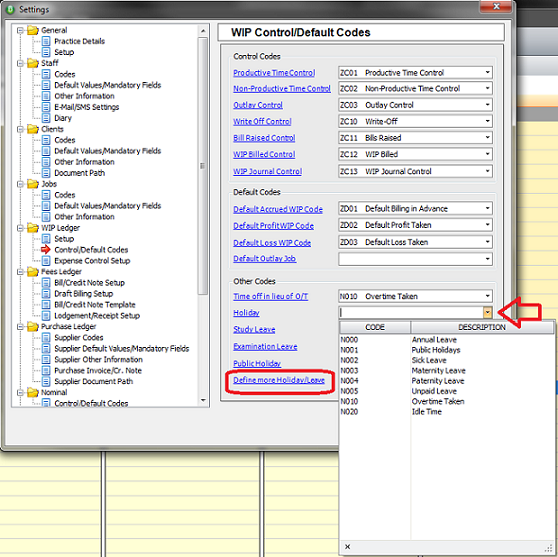
You must assign Default WIP control codes to these in order to use the Staff Holiday/Leave section.
Go to Tools >> Settings >> WIP Ledger >> Control/Default Code >> Other Codes
Click on ‘Define more Holilday/Leave’ to create your own codes
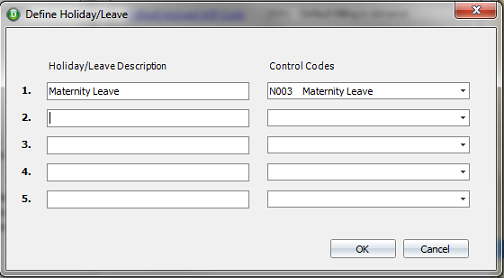
Click OK to save your changes.
[Note:- once you start posting time to these codes, you cannot change them]
Time Manager
Q1. Access to Time Manager
Issue:
I don’t have the Time Manager option in my DRIVE Desktop navigation bar. Why is this?
Resolution:
You do not have access rights to view or use the Time Manager function. You will need to check the access rights of the User Access Group you are in to make sure you have access to this function or speak with your system administrator to grant you access.
If you do have access but still do not see the feature, in the navigation panel on the left, using your mouse button, right click anywhere on the DRIVE navigation bar and from the list of options, select “Reset”. Select OK when the popup message box appears. Close out of DRIVE then log back in. All options you should have access to will now be displayed.
For more information on Access Rights, please refer to the Document on Setting up Access Groups
Timesheets
Q1. Cannot post a new Timesheet
Issue:
I want to make changes to entries posted in my timesheet but the system will not save my changes. Why?
Resolution:
DRIVE gives you a further 6 months after your practice end date to continue posting before needing to run a year end. If you do not run the year end within this period, you will not be able to post once you have passed the 6 months.
For example, a year starting 1 Jan running to 31 Dec would need to have a year end run before June 30th of the following year to continue posting time.
To run a year end, please see the Year End guide
Q2. Cannot edit my Timesheet!
Issue:
I want to make changes to entries posted in my timesheet but the system will not save my changes. Why?
Resolution:
There are two reasons why you cannot edit a time entry;
1. The Time has already been allocated
You do not have access to edit passed time.
1. If the time has been allocated you will not be able to edit it. If you wish to edit the time you will need to unallocate the time in question. (see Allocations for more information on WIP and Fees allocation) hyperlink.
2. Access rights can be applied to Timesheets that prevent a user from editing or deleting time once passed. If you cannot edit time that is passed you will need to check your access rights with your DRIVE administrator.
If you are the DRIVE Administrator see the guide on Access Rights (hyperlink).
Q3. Time posted to the wrong week
Issue:
I have accidentally posted my time from week X into the wrong week Y. Is there anything I can do?
Resolution:
Unfortunately, you cannot move/transfer this time. The only way to get this time into the correct week is to keep a record of your time, enter it into the correct week and delete the incorrect timesheet. There is no way to transfer the time between weeks. The Staff Timesheet Control Report will give you the details of a specified week.
To remove the incorrect timesheet, make sure you have access to do so and that the time has not been passed or allocated.
Q4. Incorrect Chargeout Rates
Issue:
When I go to select the rate for an entry in my timesheet, the rates available for me to select are incorrect.
Resolution:
The rates that are available will depend on the dates on the timesheet. In Staff, each staff member will have set Chargeout Rates. Which rate is used, is dictated by the Start date.
(This can be seen by going to Staff in the DRIVE Desktop, selecting a staff member where you can view or edit the rates on the right hand side of the general tab. If you cannot see this, you do not have access to this section.)
If the “Use Grade Rates” tick box is checked, the staff member’s rate is based on their Grade. This is a dropdown on the left hand side of the General tab about half way down. The rates for Grades can be seen in Tools > Lookups > Staff Grade, and then the grade that the staff member is in.
Q5. My New Chargeout Rates are not available on my Timesheet
When you apply a new chargeout rate, it will not affect your staff member until they start a new consecutive week.
i.e. if you start a new chargeout rate on a Tuesday, your staff member will not be able to use it until the next Monday.
This also applies to new Staff members, where regardless of the day of the week on which they started, you must start their chargeout rate on a Monday.
Q6. Timesheet monitoring
This setting is applied on each Staff members’ profile.
- Go to Staff under DRIVE Desktop and open the staff member you need to edit
- Above the right hand bottom corner of the ‘Edit Staff’ screen, you will see a section for Timesheet Monitoring
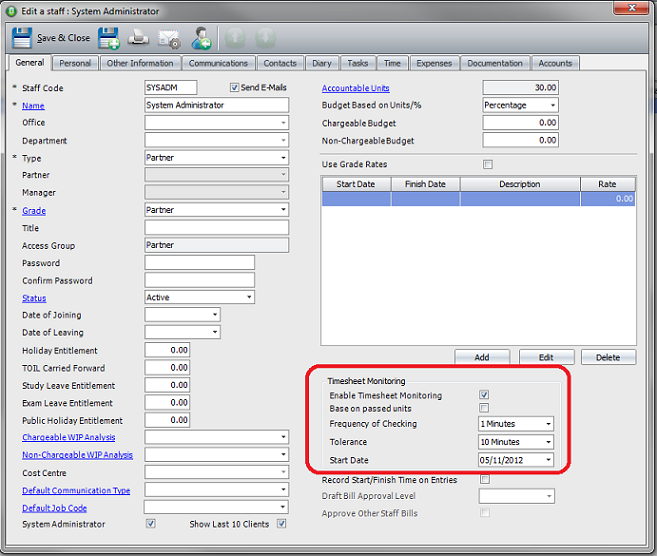
- To turn this feature off completely, untick the box for ‘Enable Timesheet Monitoring’
- ‘Base on passed units’ means, that all time entries must be passed before they are considered as logged units for Timesheet Monitoring
- ‘Frequency of checking’ is how often DRIVE will check the units entered
- ‘Tolerance’ is the time the users are allowed before being prompted to enter time
- ‘Start Date’ is the date when the program will start running Timesheet Monitoring
Expenses
Q1. Expenses will not save
Issue: - I am trying to save an expense but the system will not let me save it.
Resolution:
- 1. The date you have selected may be outside of the batch period. The Batch period can be seen in the bottom left hand corner. The date you have entered must be within these dates.
- 2. The Job code you have typed in has not been set up. Using the button (with the 3 dots) in the Job field, select one of the jobs that has been set up for this client.
- 3. The Cost Centre you have typed in has not been set up. Using the button (with the 3 dots) in the Cost Centre field, select one of the Cost Centres that has been set up for this client.
- 4. The WIP code you have typed in has not been set up. Using the button (with the 3 dots) in the WIP field, select one of the WIP codes that has been set up for this client.
- Another note you may get is “Total Amount posted does not match with Check Total”. This will not prevent you saving, it just relates to the Check Total in the top right and your total amounts figure.
Q2. How do I make a new Expense Code?
Go to WIP Ledger >> WIP Analysis - Right click and select New (or select the New icon in the top left hand corner). You will be shown the ‘WIP Analysis Code’ window
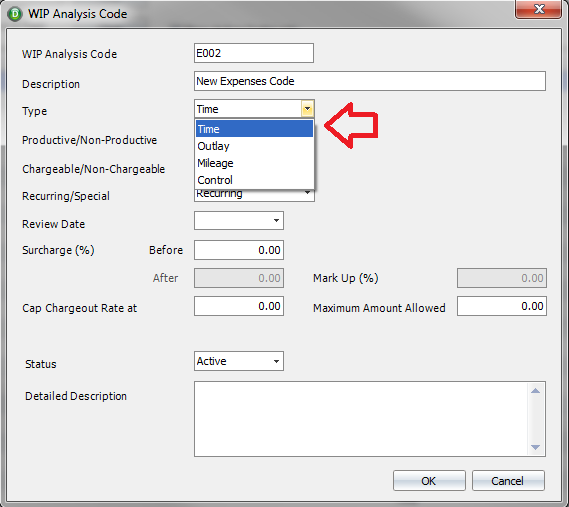
- Enter the Code and Description you want to use.
- There are four available Types to choose from:
- Time – only available on timesheets, Write-Offs and WIP Journals
- Outlay – only available on Expenses, Indirect Expenses, WIP Journals and Supplier Invoices.
- Mileage – only available on Expenses, Indirect Expenses and WIP Journals
- Control – only availableon WIPJournals.
Client & Contact Database
Q1. Add or Remove Columns
Issue: - I wish to show different columns or rearrange the display of the default columns in my Client & Contact screen. How do I do this?
Resolution:
- Right click on any of the column headers. You will see various options relating to the displays of the columns on this screen. The one that you need is “Column Chooser”. This will allow you to add or remove columns as well as rearrange their order. Highlight the column and select the Add button. Select the Ok button to add these columns to your Client & Contact display.
Q2. Last Bill Date\Bill Amount Columns
Issue: -
I have selected to include the Last Bill Date and Last Bill Amount columns but the dates and figures being displayed do not match the dates and figures in the relevant client’s fee ledger.
Resolution:
- You need to perform an Aged Client Recalculation. Go to Tools > Recalculation > Calculate Client Aging. Select Proceed, then Ok when the system asks if you are sure. When the process is completed, go to another section of the system (example. My Diary) and then back into the Client and Contact screen. The figures and dates will have updated.
Q3. Missing Clients
Issue: - I cannot find a particular client in my Client & Contact database.
Resolution:
- This can be down to one of the following reasons:
- 1. The filter you selected may not be looking at the correct Client type. In the top toolbar you will see a small drop down box. It will either say All, Clients, Contacts or Prospects. Select the relevant Client type to find your missing client.
- 2. If you are using the search function, make sure the information it is currently looking for is correct, otherwise clear this information to remove the specific search and show all your relevant entries based on the filter (see Point 1)
- 3. Your client may be a closed client. You can choose to show or hide closed clients depending on your choice. Go to Tools > Settings > General, and Setup. You will see a tick box under default settings called “Hide Closed Clients”. Tick or un-tick this box as required to hide or show your closed clients.
Staff
Q1. Editing Access Group from Staff Details
Issue: - I have tried to change or select the Access group for my staff member by double clicking into the staff member details in my Staff screen but the access group box is greyed out.
Resolution:
- This is not the correct location for changing this setting;
- Go to Tools > Staff Access Rights.
- Select your staff member from the dropdown list.
- Select Access Type to be “Group”
- Select the access group they will belong to from the dropdown list
- Select the OK button.
- The staff members’ access group is now changed.
- (being able to complete the above will depend on having access to do so)
- For more information on setting up Staff Access Rights, click here.
Q2. New Staff Member cannot log into DRIVE with their credentials
All Staff must be placed into an Access Group before they can start using DRIVE. - When you create a new staff member and save them, DRIVE will open the Staff Access Rights screen. You must put them into a Group. Do not use Special
- To add an already created staff member to a group, go to Tools > > Staff Access Rights, type in their staff code and select a group.
Staff Holiday Leave
Q1. Holiday Request Approval
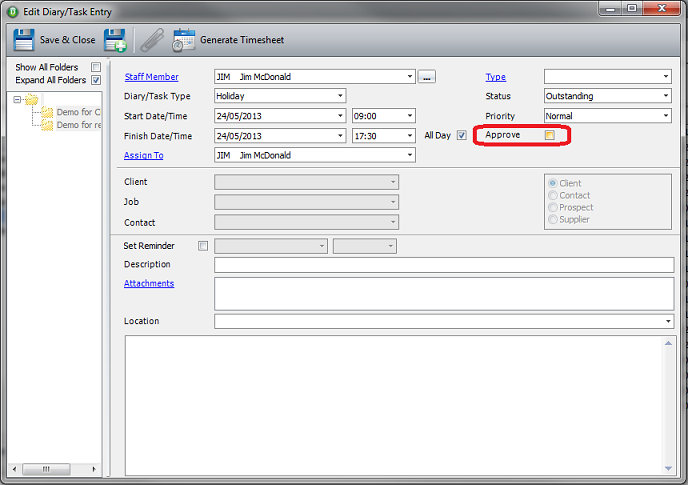
Thiswill only work if you are using staff grades, i.e. Partner > Manager > Other and have defined Managers on StaffProfiles. - The staff member (Other) creates holiday tasks and saves them. When the manager/partner logs into DRIVE, they are shown an alert for ‘Holiday Request Approval’.
- Theyneedtoopenthestaffmembers’taskandticktheboxapprove
Q2. Holiday not Approval
Period Dates v Calendar Year
If you base your Diary on your practice dates, your Staff Holiday/Leave planner will only show you dates which are within that period. You should not choose this option if your financial year does not match the year that you use for Administration.
This setting is applied in Tools >> Settings >> Diary, ‘Base Holiday Planner on Practice Year’
Q3. Entitled not Displaying
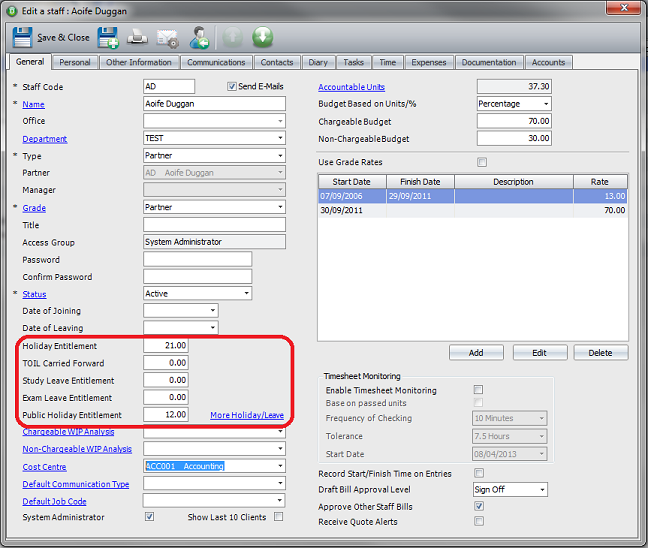
‘Entitled To’ days must be entered on each Staff members’profile
Go to DRIVE Desktop >> Staff and open the staff member you need to apply days to.
Your standard task types will appear here, you need to click on ‘More Holiday/Leave’ in order to add any other types you’ve defined.
Q4. Staff Holiday/Leave Planner is blank
You have not defined your default nominal codes for your Holiday/Leave types.
Go to Tools >> Settings >> WIP Setup >> Control Default Codes
Q5. Editing the Report Columns
Issue:
I wish to show different columns or rearrange the display of the default columns in my report. How do I do this?
Resolution:
Using your mouse, highlight the specified report and right click on the name of report. The Report setup window will be displayed showing you various customisation options. The one that you need is “Column Selection”. This will allow you to add or remove columns.
You can rearrange their order and alignment in “Column Settings”. When you are happy with your changes, select OK and run the report.
If you select to display too many columns, they cannot all physically fit on the page. Under Report Settings you can select to set the page as landscape but even this will still have a physical limit. Under Column Settings, any column that falls outside of the ruler will not be displayed. You can adjust the columns widths in the ruler to make the columns fit.
Refer to the guide on Report Setup for more information on customising your reports. (link goes here https://www.relate-software.com/relate-support-centre/)
Q6. Exporting Reports
Issue:
I have tried to export my report into Microsoft Excel. I received no error messages and everything looked like it was working fine. Exporting to Word or PDF has worked, but my report does not seem to have exported at all in Excel. Why is this?
Resolution:
Some windows updates can conflict with the .NET framework causing issues when trying to export reports from DRIVE to excel format. The issue is when you try to export your report to excel, it displays the message that the report has been successfully exported but when you go to open the excel document you find it has not been created.
This issue is not actually caused by DRIVE however to correct this issue you will need to install a Crystal Reports patch, which is available from their website to download. Alternatively you can use the link below to directly download the patch:
ftp://ftp1.businessobjects.com/outgoing/CHF/crnet11win_en.zip
When running the patch you must have all windows and applications closed, if not you can corrupt whichever programs you have open, resulting in you needing to uninstall and reinstall the program you wish to use.
Q7. When I double click on Reports, nothing happens
DRIVE reports require a pre-requisite, the Crystal Reports Patch.
Don’t worry if you didn’t install this with DRIVE, you can download it by clicking on this link. You may need to re-launch DRIVE if the reports don’t start running after you run the patch.
Accounts
Q1. What is the Accounts module for?
This is where users can personalise their view of the nominal accounts.
Users can add only the nominal accounts they need to monitor and have quick access (using icons in the toolbar) to:-
- The Nominal Ledger Card for each Code
- The Periodic Trial Balance for each Code
- Budgets & Comparatives
Right click and select New to add accounts.The view is personalised for each Staff member
Alerts
Q1. My Alerts don’t open when I log in?
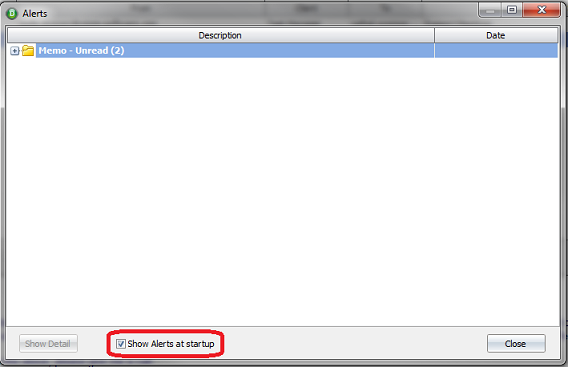
There is a settings on the Alerts window, ‘Shows Alerts at Startup’
If you have turned off this feature, you must wait until you have an outstanding phone call, email etc,. before you can turn it back on.
Go to DRIVE Desktop and select Alerts. This will open the window.
Q2. I never get any Alerts
DRIVE will run other executable files when it opens, than the actual program itself. One of these is the DRIVEReminder.exe
You can check if this is running by opening your task manager and checking your processes (Ctrl +Alt+Delete)
If this is not running, you need to check has it been installed in C:Program FilesRelate SoftwareDRIVE 2.0 – if you have a 64-bit machine, change your path to use Program Files (x86)
You will need to reinstall DRIVE if you are missing this file. Make sure to allow this through your firewall or anti-virus.
Please contact your IT if you are unsure of how to do this.
Books In
Q1. How do I notify someone that I have created Books In for them?
When you create a Books In entry and assign it to a staff member, this will create an alert for them. This will pop up as the user logs into DRIVE (if they have ticked the option on the Alerts window, ‘Show alerts at Startup’)
All Communications
Q1. Communication against the wrong client
Issue:
There has been a communication recorded against the wrong client.
Resolution:
Open the communication in question and select the correct client from the Client drop down list. If it is greyed out you will need to do it from the Inbox of the user who created the communication.
Q2. No Communications are Displayed
Issue:
When I select All Communications from the Communications module the toolbar changes but no communications are displayed.
Resolution:
Windows Vista / 10:
If you are on Windows Vista or Windows 7 machine you will need a component called a DHTML editor. On exiting DRIVE you will be prompted for this missing component, follow on screen instructions to download and install.
If you have already closed this prompt you will need to get the download from Microsoft.com. Search Microsoft Download Centre for DHTML Editing Control for Applications Redistributable Package (x86). Follow the on screen instructions to download and install. Once installed, restart DRIVE for the changes to take affect.
Windows 11:
If you are having this issue on an 11 machine, there is a setting in your boot.ini file that needs to be changed. Contact technical support to correct this issue.
SMS
Q1. SMS will not send
Issue:
I cannot send an SMS
Resolution:
To send an SMS you must first have an SMS account created within DRIVE. If you hae never created an account please contact support@relate-software.com about setting up an SMS account.
If you previously had no issue with sending SMS but now can no longer one, there are three common reasons for this;
SMS Credits have run out:
You have used up your SMS credits. You will need to contacts Relate Software Accounts to purchase more credits.
Internal Network Changes:
There has been an internal network or security change made in your office. These can range from a new anti-virus update / installation to network updates or server moves. You will need to check with your I.T personal to see what has changed.
No internet Connection:
You need access to the internet to be able to send SMS through DRIVE.
Q2. ERROR:14, cannot route message
Issue:
When you try to send an SMS it throws up an error; “Err:14 cannot route message”.
Resolution:
Your computer cannot send the message due to firewall restrictions or security restrictions. Ensure you have the correct ports (80 or 8080) open and access to the following address.
Q3. Err 108 Invalid or missing API_ID
Issue:
When trying to send an SMS I keep getting, “Could not send message – Err 108 Invalid or missing API_ID ”. Why is this?
Resolution:
Your SMS details are incorrect or no longer active. Contact DRIVE Technical Support for further assistance.
Q3. Could not send message: login Invalid
Issue:
When trying to send an SMS I keep getting, “Could not send message: Login Invalid”.
Resolution:
Your SMS details are incorrect or no longer active. Contact DRIVE Technical Support for further assistance.
Email
Q1. E-mail keeps saying retrieving 1 of X amount (Leave Copy on Server)
Issue:
When the users presses the Send & Receive button, they keep getting the message that it is retrieving 1 of X amount even though nothing new is coming in.
Resolution:
This is because you have the “Leave Copy on Server” option selected in the Communication settings (Envelope, Cog icon found bside the Send/Recive button). To turn this setting off you need to go to your Communication Settings / highlight you email account, select edit, and un-tick “Leave Copy on Server”.
Q2. Sending Mail 503.5.5.2 need Rcpt command!
Issue:
When I Send / Receive I get an error message, “Sending mail 503.5.5.2 need Rcpt command”!
Resolution:
There is a corrupt email in your outbox, its either got an attachment that no longer exists or it has become corrupt itself, to resolve delete the email and re-create the email.
Q3. Server transaction failed
Issue:
When trying to send an email I get a “Server transaction failed” error.
Resolution:
This can be caused by a corrupt email in your outbox. Set the emails in your Outbox to draft and create a new mail. If the new mail sends fine, you will need to re-create the mails in your draft.
If the issue happens with the new mail, contact DRIVE technical support for further assistance.
Q4. Specified file or directory does not exist
Issue:
I am getting a “Specified file or directory does not exist” when creating an email!
Resolution:
There are 3 common reasons this can happen;
1. No email storage location has been defined or it has changed for you email account. This setting is defined in your Communication settings.
2. The file you are trying to send is no longer in the original location. Re-attach the document and Send again.
3. You do not have access to the Storage location. Have your system administrator check that you have Read/Write access to the email storage location.
(See the Email setup guide for more information https://www.relate-software.com/relate-support-centre/)
Q5. Specified hostname is invalid or could not be resolved
Issue:
I am getting a “Specified file or directory does not exist” when creating an email!
Resolution:
The incomming or outgoing mail server is not correct in Communication Settings. To edit select the Communication Settings button from the email toolbar. The Communication Options window will be displayed. Highlight the email account and select edit, confirm the incomming and outgoing server details are correct.
If you are not sure what the details should be, you will need to refer to your email providers for these details. If the details are correct and you still have the issue, please contact Relate Software Support for assistance.
Q6. The Specified password is invalid
Issue:
When trying to send an email I get an error message, “The Specified password is invalid”.
Resolution:
The issue is with the Email account details you have input. It can be a combination of an incorrect username and password.
You need to input the correct username and password into the Email Account details. It can also be the Microsoft Exchange setup. The user might have an alias in exchange (Your IT people should check this for you).
If you have tried both the above and are still having the issue, you will need to set the account up in Outlook Express. This will allow you to check if the account details are correct. If it works fine in Outlook Express, contact DRIVE technical support for further assistance. If it fails in Outlook Express, there is an issue with the email account. You will need to have your IT person check this for you.
Q7. Unexpected response code returned from server!
Issue:
When trying to send an email I get an error message, “Unexpected response code returned from server”.
Resolution:
The POP3 queue on Microsoft Exchange Server has not been enabled (Ask your IT person to look after this for you).
If the problem still persists, setup the email account in Outlook Express. If the email account does not work in Outlook Express, it will not work in DRIVE. You will need your IT person to look at this.